If you run a WordPress website and use Google Ads, Google Analytics 4 (GA4), or Floodlight, Google Consent Mode v2 is now mandatory for tracking EU and EEA visitors. Failing to implement Consent Mode v2 means Google Ads will no longer record conversions or build remarketing audiences from European traffic.
In this comprehensive 2026 guide, you’ll learn what Google Consent Mode v2 actually is, how the four consent signals work, the critical difference between Basic and Advanced implementation, and how to set it up on your WordPress website with zero performance slowdown.
Quick Summary: What Is Google Consent Mode v2?
Google Consent Mode v2 is an API framework that allows your WordPress cookie banner to communicate visitors’ privacy choices directly to Google tags (Google Tag Manager, GA4, and Google Ads). Instead of completely blocking all Google scripts or loading them blindly, Consent Mode dynamically adjusts tag behavior based on whether the user clicks “Accept” or “Reject”.
Under Consent Mode v2, Google introduced two new consent parameters specifically to comply with the European Digital Markets Act (DMA):
- ad_storage (Existing): Controls whether cookies can be stored for advertising purposes.
- analytics_storage (Existing): Controls whether analytics cookies can be stored to measure site usage.
- ad_user_data (New in v2): Explicit consent to send user data (such as emails or transaction values) to Google for advertising.
- ad_personalization (New in v2): Explicit consent to use visitor data for personalized remarketing campaigns.
Basic vs. Advanced Consent Mode: Which Should You Choose?
When implementing Google Consent Mode v2 in WordPress, Google supports two operational modes. Understanding the legal and technical distinction is crucial:
| Dimension | Basic Consent Mode | Advanced Consent Mode |
|---|---|---|
| How It Works | Google tags are completely blocked until the visitor accepts cookies. | Google tags load immediately and send cookieless pings if rejected. |
| Conversion Modeling | General modeling across all traffic. | Advanced behavioral & conversion modeling via cookieless pings. |
| EU Privacy Compliance | 100% strict compliance (Satisfies strict DPA/AP interpretation). | Some DPAs (e.g., in Germany/France) debate cookieless IP transmission. |
| Best For | Privacy-first European businesses & agencies. | High-volume e-commerce stores maximizing ad conversion tracking. |
How to Set Up Google Consent Mode v2 on WordPress (Step-by-Step)
There are two primary ways to configure Consent Mode v2 on WordPress: using a dedicated self-hosted plugin, or through manual Google Tag Manager templates.
Method 1: The Fast, Self-Hosted Way (WP Upgrader GDPR Consent)
The cleanest and most reliable way to implement Google Consent Mode v2 without slowing down your WordPress website is with the WP Upgrader GDPR Consent Plugin.
- Install the Plugin: Upload and activate the GDPR Consent plugin from your WordPress dashboard.
- Enable Google Consent Mode v2: Navigate to the plugin settings and enable the Google Consent Mode v2 toggle. The plugin automatically generates the required default consent state (denied) in the HTML head before any Google scripts fire.
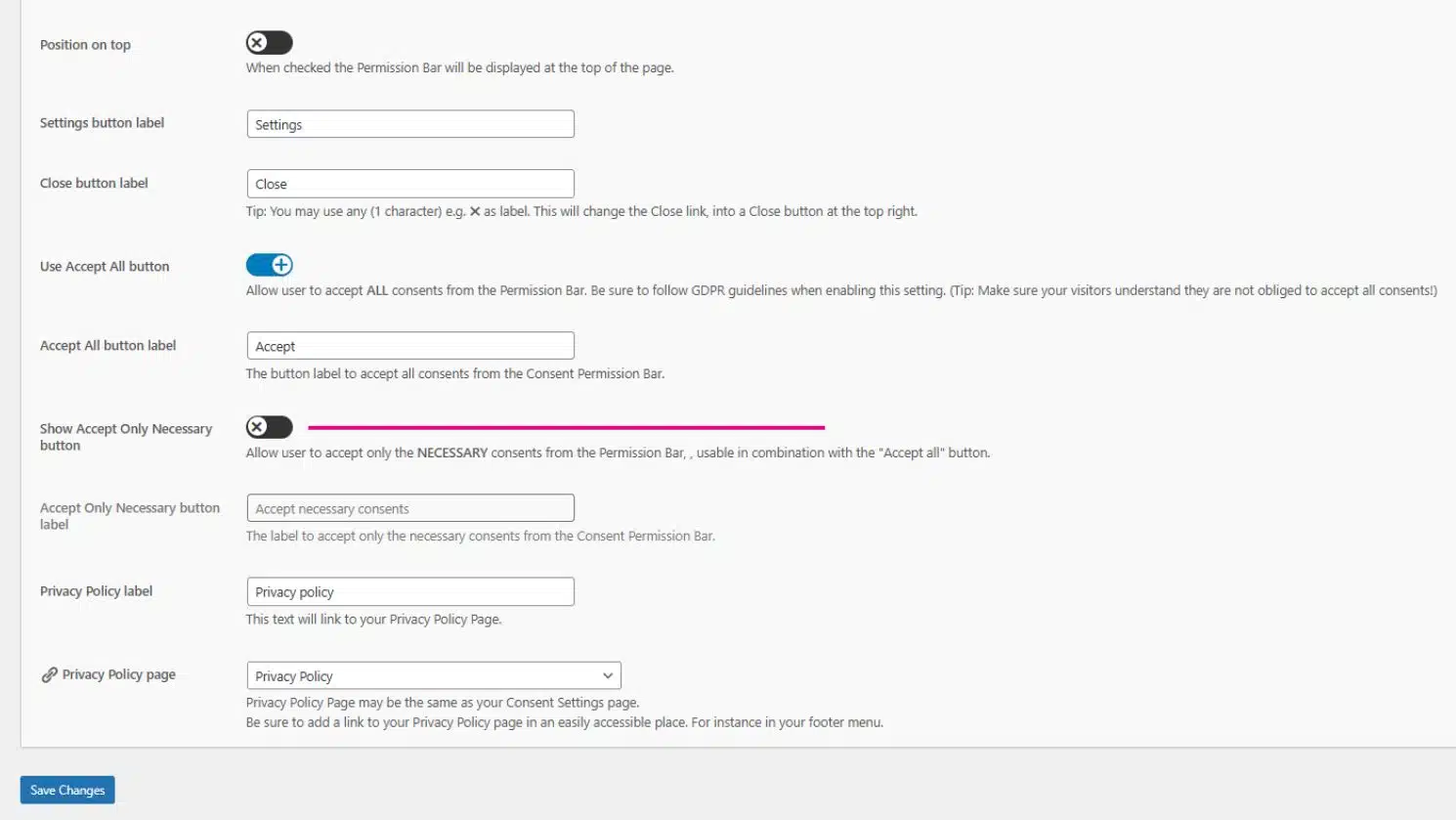
- Configure Your Consent Banner: Customize your banner text, branding colors, and ensure a clear ‘Reject’ or ‘Accept Only Essential’ button is visible to comply with Dutch AP and EU regulations.
- Attach Your Marketing Scripts: Link your Google Tag Manager ID or GA4 measurement ID directly inside the plugin. When a visitor accepts analytics or marketing, the plugin immediately signals Google to update the consent state from
deniedtogranted.
GDPR Consent Plugin for WordPress (With Google Consent Mode v2)
Full Google Consent Mode v2 support built-in. Unlike heavy cloud CMPs that load 500KB+ of third-party JavaScript, WP Upgrader GDPR Consent is 100% self-hosted, lightweight, and preserves perfect Core Web Vitals scores.
ad_user_data & ad_personalization supportMethod 2: Configuring via Google Tag Manager (GTM)
If you prefer orchestrating tags entirely within GTM, you must ensure that default consent is established before any Google tags fire:
- In GTM, go to Admin > Container Settings and check Enable consent overview.
- Ensure your cookie plugin pushes a
consent_defaultdataLayer event or injects thegtag('consent', 'default', {...})script before GTM’s container snippet executes. - When users update their consent via the banner, trigger an update event:
gtag('consent', 'update', {...}).
How to Verify That Google Consent Mode v2 Is Working Correctly
After installing and configuring your cookie banner, always verify that Google receives the consent signals properly using these three validation methods:
- Google Tag Assistant (Preview Mode): Open Google Tag Assistant and connect to your site. Select the Consent tab on the left. Verify that the Consent Default shows all parameters as
denied, and changes tograntedafter you click ‘Accept’. - Network Tab (Browser DevTools): Inspect network requests sent to
google-analytics.com/g/collect. Look for thegcd=parameter in the payload URL. A properly configured v2 signal starts with11(e.g.,gcd=11r1r1r1r5), confirming that all 4 signals are actively transmitted. - Google Ads Diagnostics: In your Google Ads account, navigate to Tools & Settings > Conversions. Look for the Consent Mode status indicator to confirm Google detects active Consent Mode signals.
Frequently Asked Questions About Google Consent Mode v2
Is Google Consent Mode v2 mandatory for WordPress sites?
Yes, if you use Google Ads or GA4 to target or measure visitors from the European Economic Area (EEA). Without Consent Mode v2, Google Ads will stop tracking conversions and cannot build remarketing lists from EU traffic.
What is the difference between ad_user_data and ad_personalization?
ad_user_data controls whether user-provided personal data (such as emails or phone numbers passed via enhanced conversions) can be sent to Google for advertising. ad_personalization controls whether visitor activity can be used to serve personalized remarketing ads across the Google Display Network.
Can Google Consent Mode v2 slow down my WordPress site?
Many third-party Consent Management Platforms (CMPs) inject heavy external JavaScript that delays page load and harms Core Web Vitals (especially Largest Contentful Paint). By choosing a self-hosted solution like WP Upgrader GDPR Consent, the consent signals run entirely on your server with zero third-party latency.
Does Consent Mode replace the need for a GDPR cookie banner?
No. Google Consent Mode is not a banner by itself; it is an API that allows your cookie banner to communicate with Google. You still need a legally compliant cookie banner that offers explicit Accept and Reject choices to visitors.
Related guides from our WordPress privacy series:
• The 3 Best Tested WordPress Cookie Plugins in 2026
• Do You Need a ‘Reject’ Button in Your Cookie Banner?
• Can a Cookie Banner Slow Down Your Website Speed?